This is method how i have solved my problem with game, now i dont have none of title issues, my FPS in games are 95-100FPS with no drops, CPU Usage: 70-85% and GPU Usage: 80-95%, this could be fix to others as well with same rig i have. I have recorded prove video with mobile phone so to not loss none frame.
.
i7 6700K (oc 4.7)
16Gb DDR4 RAM 2133 (if your ram is faster then 2133 then downclock it to 2133, if you are on DDR3 make it 1600, this is only if you have RAM issues)
GTX 980Ti SLI (game running in DX11)
Game is installed on SSD
EVGA P1 1600W
3440x1440 100Hz G-sync (game running on ultra settings, Anti-aliasing OFF, with high settings gameplay can be even better)
.
Make User.cfg file add below settings and save it to game directory
Thread.MaxProcessorCount 8 (check your CPU how much threads it have and replace it with 8, if you have more then 8 threads then make it “8” cause if you add 16 game will not startup)
PerfOverlay.DrawFps 1
RenderDevice.VSyncEnable 0
RenderDevice.RenderAheadLimit 2 (you can play around with this in range of 0-4 values and see which is the best for you, for me is 2)
GameTime.MaxVariableFps 99.94 (if your monitor is 60Hz then add 59.94, if your monitor is 120Hz and you can match FPS with that, then add 119.94, and for 144 143.94)
.
DISABLE Windows update (win10)
.
DISABLE GAME DVR on WINDOWS 10by disabling this you will increase 10-20% of FPS in all your games
If you dont use XBOX app on your windows then do following:
1. Click the search button
2. Search for “PowerShell”
3. Right click on Windows Powershell, then click “Run as administrator”
4. Paste this in: Get-AppxPackage Microsoft.XboxApp | Remove-AppxPackage
5. Wait about 30 seconds
6. Done!
.
If you use Xbox app on your windows then just disable DVR only:
Go to Xbox app → Settings → Disable Game DVR.
or you can disable it via registry as well:
1. Navigate to HKEY_CURRENT_USER\SOFTWARE\Microsoft\Windows\CurrentVersion\GameDVR.
2. Change the AppCaptureEnabled DWORD value to 0 to turn it off.)
.
For Nvidia users, DISABLE SHADOWPLAY! (or in some case uninstalling Nvidia Experience may give better results)
.
Disable any Overlays if you are using, including Origin in-game overlay
.
Unpark CPU cores with Manage Parked CPU Utility
.
RAM MEMORY INFO. Make sure you are not running your game in single channel mod (one stick) cause that will do some similar problems to the game and not only BF1, run it always if you can DUAL CHANNEL mode (two stick of same ram)
**Increase Paging File, if you have 8Gb or 16Gb of RAM then add 3000 or 3500 value, if you have 32Gb of RAM add 5000 value, how to do this and where to add value, pls watch this Video
**
.
PC HEAT! Make sure your PC is not over-heating, cause that could be one of issues that make FPS drops in games
.
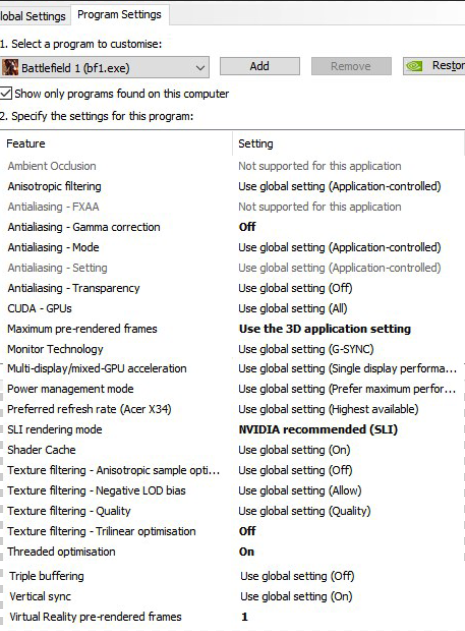
Settings in Nvidia Control Panel (drivers 375.70 10/28/2016, make sure drivers are up to date)
.
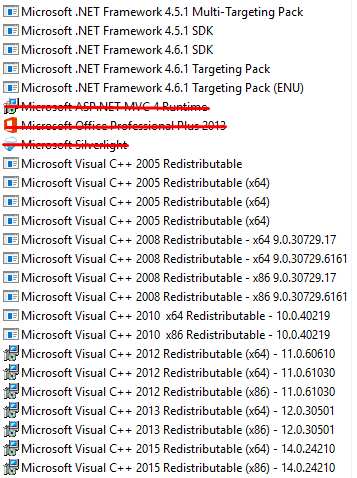
Make sure you have all this installed:
.
Here on videos you can see graph which shows no issues in game
Conquest 64 players
**
https://www.youtube.com/watch?v=56GVk_KnOxo
.
Team deathmatch 24 players
**