Link to section: Hello, I wanted to share how I resolved the bad performance, slow menu, lag in game play that I’ve been experiencing for the last few days. It came up all of a sudden and it was somewhere around the lHello,
I wanted to share how I resolved the bad performance, slow menu, lag in game play that I’ve been experiencing for the last few days. It came up all of a sudden and it was somewhere around the latest BF1 update. Not only was my hit reg suffering but I noticed an odd micro stutter and huge CPU lag spikes as if I was using dx12. Which, btw, I was told to use DX11 to avoid. It does appear to be one isolated way of fixing this that has worked for me so I will list all that I did so that it’s a guide for you to try in order to fix your problem. A. Clear Out Origin Cache and Rest BF1 Settings
Reset Settings in BF1 Under Options
- While in BF1 go to Options then Reset Controls, Audio & Video Settings
-Exit out of BF1 and Origin.
- Clear your Origin Cache: https://answers.ea.com/t5/Technical-Issues/Don-t-know-how-to-clear-origin-cache-View-this/td-p/5499713
• Open the Start menu.
• Type “view hidden files and folders” (Control Panel) into the search bar.
• Press Enter to open the View tab of your Folder Options.
• Open the Hidden Files and folders menu within the Files and Folders menu.
• Click Show hidden files, folders, and drives.
• Go to C:\ProgramData\Origin — Delete everything except for 1 folder (LocalContent):
----DO NOT DELETE: C:\ProgramData\Origin\LocalContent
• Delete Origin folder in C:\Users<username>\AppData\Local\Origin*.*
• Delete Origin folder in C:\Users\ \AppData\Local\Temp*.*
• Delete Origin folder in C:\Users\ \AppData\Roaming\Origin*.*
ALSO
• Delete BF1 folder C:\Users\username\Documents\Battlefield 1\cache*.*
• Delete BF1 folder C:\Users\username\Documents\Battlefield 1\temp*.*
Link to section: Restart Origin 3. Start Origin (it will take a minute) and login in with username/password. -Origin > Applications Settings: Review all your setting to your preference. Make sure you check your InstalRestart Origin
3. Start Origin (it will take a minute) and login in with username/password.
-Origin > Applications Settings: Review all your setting to your preference. Make sure you check your Install & Saves.
-Open your User.cfg in BF1 folder and add:
…RenderDevice.RenderAheadLimit 0
…PerfOverlay.DrawGraph 1
4. Save User.cfg and exit. Make sure User.cfg is in your C:...\BF1\User.cfg
5. Start BF1. Go to Options and setup your audio 1st to your preference. Review your video settings. Leave Video at Defaults for now. Vsync will be enabled for now.
6. Play a match and see if things improve or not. If they have improved adjust your video settings. IE: Disable Vsync for Framerate Cap.
7. Play another match. Make sure you are getting the same improved experience.
If things didn’t improve
- Exit out of BF1 and Origin and check your graphic card’s settings. Make sure they are at the recommended settings.
- Type Task Scheduler in the the search bar. Open TS. Do you see tasks being scheduled when you are gaming? Either change the time of when you want to schedule those task or disable them.
- Open Task Manager > Start Up Tab > Disable all Applications that are NON ESSENTIAL TO PLAYING BF1. You can re-enable them later if you like.
- Use RamMap to Empty Standby List and Modified List. Exit out of RamMap. Restart both Origin and BF1 and try again.
…RamMap: RAMMap - Sysinternals | Microsoft Learn Side Note
Use MSI Afterburner and monitor GPU Usage and GPU Clock Rate. Make sure it doesn’t fluctuate wildly.
Also Monitor the GPU/CPU overlay while in game. Both green and yellow bars should both show reduced fluctuations.
–
Addressing 100% CPU LOAD
You can address 100% CPU LOAD by creating a User.cfg file in C:/…BF1/User.cfg.
ADD:
gametime.maxvariablefps 61 <—use 61 if you notice fluctuations in your framerates preventing a solid lock on 60 FPS.
PerfOverlay.DrawGraph 1
RenderDevice.RenderAheadLimit 0
Save it as User.cfg and exit.
Or
For those that have a lower end CPU with a moderate to moderately higher end GPU. Set the GPU to stock clocks. Try to keep it at it’s base clock rate without it increasing to higher clock rate.
This should help in keeping your cpu from reaching 100% load in more demanding 64 player maps.
B. Make sure Windows Audio Device Graph Isolation isn’t pounding your CPU because of encoding.
Check Task Manager for a process called Windows Audio Device Graph Isolation. It should have 0% CPU. If It doesn’t you have 2 options. - Open Windows Playback by right clicking on the horn icon in the lower right of screen. Select Your Speakers go to advance or whatever tab “Enhancements” are found and disable it. WADCGI should go to 0%.
- Open up the app that controls your audio device. Locate where Encoding is found and disabled that. Encoding could be for Doby Digital, DTS, etc. Disable it. This should drop CPU usage down to 0%.
–
This should allow you to free up so CPU cycles towards BF1. C. Is your PC ready for BF?
Link to section: As these images show you should find a way to reduce as many processes and thread usage as possible. The lower you get them the more you free up your PC for BF! D. Understanding your Network ConnectioAs these images show you should find a way to reduce as many processes and thread usage as possible. The lower you get them the more you free up your PC for BF! D. Understanding your Network Connection to BF1
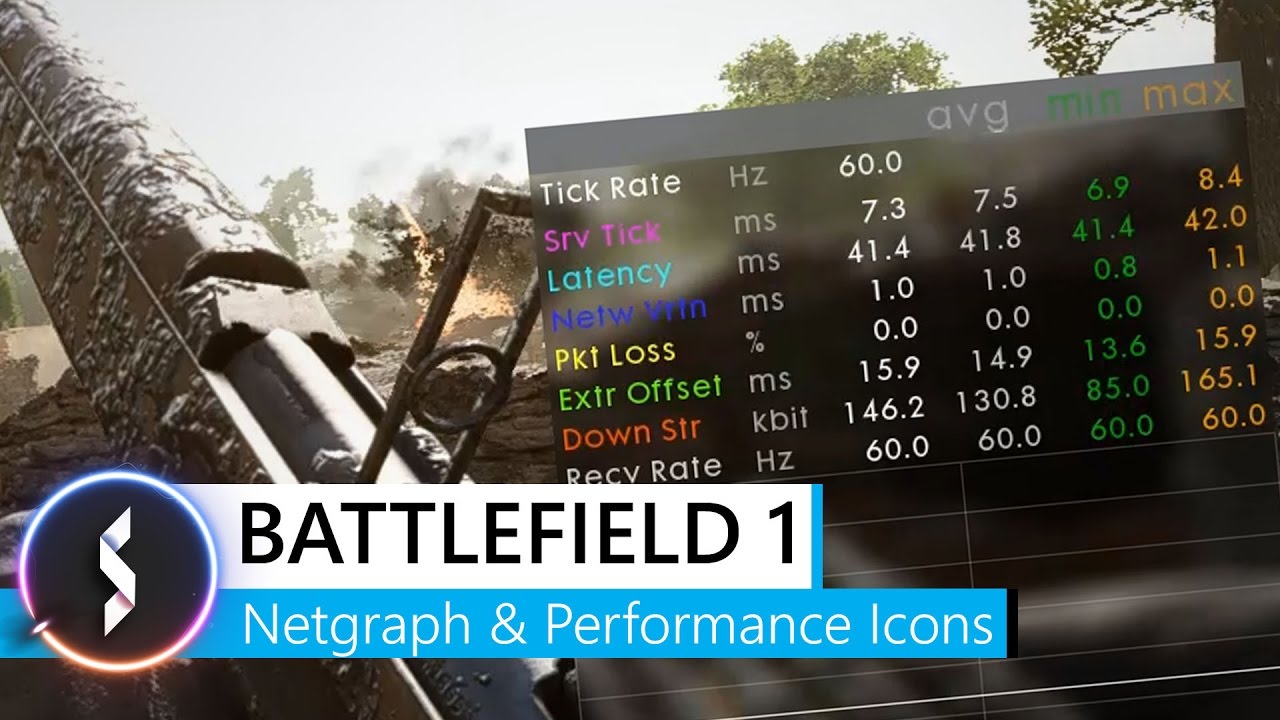
Please enable network Graph if you are experiencing issues like hit registration problems to see if there are network issues causing your problem.
You can do this by going to : Options → Gameplay → Advanced → show network.
Here you will see, while gaming the following:
Link to section: Tick Rate 60Hz is the default on all BF1 Servers. For BF4 it’s 30Hz.Tick Rate 60Hz is the default on all BF1 Servers. For BF4 it’s 30Hz.
Link to section: Server Tick: Tells us how long it takes the server to process a single tick. At 60Hz the max time frame should be in the single digit ms average. A double digit value can cause intermittent issues likServer Tick: Tells us how long it takes the server to process a single tick.
At 60Hz the max time frame should be in the single digit ms average. A double digit value can cause intermittent issues like hit registration, rubberbanding, etc. if consistent.
Link to section: Latency: Single and double digit values are usually fine in BF1. Even 100-120ms can offer decent gaming experience.Latency: Single and double digit values are usually fine in BF1. Even 100-120ms can offer decent gaming experience.
Link to section: Network Variation: tells us how stable your connection is to the server. There is always some variance with this. You want to make sure your PC isn’t working in the background to help get a better NV.Network Variation: tells us how stable your connection is to the server. There is always some variance with this. You want to make sure your PC isn’t working in the background to help get a better NV.
1-4ms is excellent
5-7ms hit registration problems
Link to section: Packet Loss: The sum of both incoming and outgoing packets that didn’t reach the server nor did they reach you. < 0% is the gold standard for any FPS game > 1% will cause hit rego problems if this is Packet Loss: The sum of both incoming and outgoing packets that didn’t reach the server nor did they reach you.
< 0% is the gold standard for any FPS game
> 1% will cause hit rego problems if this is happening while you are shooting.
Link to section: Extrapolation Offset: This tells us the difference in the game for the client differs for the game on the server. Anything higher then 20, along with a high NV and Server Tick will cause hit registratExtrapolation Offset: This tells us the difference in the game for the client differs for the game on the server. Anything higher then 20, along with a high NV and Server Tick will cause hit registration issues.
60Hz server you must be below 20ms
30hz server you must be below 40ms
Link to section: Download Stream: Tells you of your download speed to the server. Which they include upload as that’s just as important IMO.Download Stream: Tells you of your download speed to the server. Which they include upload as that’s just as important IMO.
Link to section: Receive rate (last): this should mirror tick rate which is 60Hz in Bf1 and 30Hz in BF. If it’s 30Hz in BF1 you have a low frame rate. Which can cause you to lag.Receive rate (last): this should mirror tick rate which is 60Hz in Bf1 and 30Hz in BF. If it’s 30Hz in BF1 you have a low frame rate. Which can cause you to lag.
Credit:
Link to section: Additional SuggestionsE. Address Windows 10**** – Disable Game Mode If you only have 2 to 4 physical Core CPU disable Game Mode. You won’t benefit from it. Settings > Gaming > Game Bar > Untick and diAdditional SuggestionsE. Address Windows 10****
–
Disable Game Mode
If you only have 2 to 4 physical Core CPU disable Game Mode. You won’t benefit from it.
Settings > Gaming > Game Bar > Untick and disable everything
Settings > Gaming > Game DVR > Untick and disable everythingO&O Shutup10
Use O&O Shutup10 to disable certain Win10 services thus reduces the amount of fore/background processes in win10.
I highly suggest you give it a try. But make a restore point before you do.
O&O ShutUp10 - O&O Software GmbH
Actions > Apply only recommended Settings > File > Exit > Reboot
–
Addressing any kind of Stutter after rotating through 3 or more different maps
If you find BF1 stuttering after rotating a few maps like OPERATIONS do the following:
Allow BF1 to load to the 3rd or so map
once at the spawn screen go to desktop
Use RamMap: RAMMap - Sysinternals | Microsoft Learn
In RamMap go to Empty and select to empty Standby List, Modified Page List and Priority 0 Standby List
Wait a few seconds
File > Refresh
Wait a few seconds
File > Exit
Return back to BF1
–
F. What Ports Need to be Opened for BF1?**
There is a general list that EA Offers.
EA Help: Official support
Click on EA’s link to get the ports you need opened.
Origin:
PC
-UDP 443
-TCP 80, 443, 8080
Link to section: BF1: PC -TCP: 80, 443, 5222, 9988, 17502, 20000-20100, 22990, 42127 -UDP:3659, 14000-14016, 22990-23006, 25200-25300 80, 443, 9988, 17502, 20000-20100, 22990, 42127BF1:
PC
-TCP: 80, 443, 5222, 9988, 17502, 20000-20100, 22990, 42127
-UDP:3659, 14000-14016, 22990-23006, 25200-25300
80, 443, 9988, 17502, 20000-20100, 22990, 42127
No info about the effectiveness of using UPnP at this time. I hope this helps solve your performance related issue(s).
It has helped me remove:
-stuttering in menus and in game
-cpu spikes
-slow odd movement in game
-microstutter in game
-improved hit registration
-mouse lag
