This is not a definitive list of things that will definitely boost your FPS, the solutions may help those experiencing unexpected low performance or stuttering. I will continue to update this.ShadowPlay or PlaysTV:
-
It seems ShadowPlay has been causing huge FPS drops (reducing frames by like 50) for whatever reason. Make sure you have it disabled until Nvidia releases a driver update. I haven’t seen many problems from AMD users but this might also apply to Raptr/PlaysTV, so disable these. To see how to disable ShadowPlay see this video: https://goo.gl/Q52UqW
Drivers - Latest: AMD [16.10.2] 20th October, Nvidia [375.57] 21ST October -
Even if you have the latest drivers, I recommend re-installing them using the method below. The auto-update or manual update of drivers (even if you uninstall the old ones first) can be problematic due to old remnants being left in your system somewhere.
-
Fully re-install your Nvidia/AMD drivers using DDU tool found here: http://www.guru3d.com/files-details/display-driver-uninstaller-download.html Run the program, it will reboot into safe mode and fully remove any trace of the old driver, then download the latest driversfrom Nvidia or AMD.
-
!!! Always use DDU when updating or changing drivers !!!
-
Alternatively you could try some older drivers out, remove your current drivers (as above) then grab older drivers from these links: Nvidia http://www.guru3d.com/files-categories/videocards-nvidia-geforce-vista-|-7.html or AMD http://www.guru3d.com/files-categories/videocards-ati-catalyst-vista-win-7.html
High/100% CPU Usage - Potential workaround 1 - (EA are aware of this issue and are working to patch it.) -
Make a file name ‘user.cfg’ and place it in your Battlefield 1 folder, add the following lines: gametime.maxvariablefps 60
RenderDevice.RenderAheadLimit 1 -
We’re using 60 to limit the FPS, ideally you want this to match your refresh rate. If you’re using a higher frequency display (i.e. 144hz) see if you get stable results at 60, then increase it gradually.
-
The RenderDevice.RenderAheadLimit is actually 0 by default, experiment with values 1,2 and 3.
-
You can also also change these values in nVidia/AMD control panel if you prefer, there’s a discussion on this here: High cpu usage/low fps potential fix.
High/100% CPU Usage - Potential workaround 2 -
Only one or two verified cases of this working but… try increasing your memory frequency within your BIOS, the XMP profiles should make this easy. Google search for specific instructions for your motherboard.
-
Overclocking CPUs (especially voltages) has been causing the game to crash. Try downclocking/volting.
Graphical glitches on Aimens (AMD Specific) -
If you’re experiencing large ‘sun’ like light on your screen (Imgur: The magic of the Internet), or your screen going blue, black or red - try putting your lighting settings on Ultra. You can leave the other settings as they are, it fixed it for me and others but isn’t definitive. This won’t work if you apply mid game, you’ll need to restart first.
Other Tips: -
Disable Origin in-game, it’s been causing DirectX crashes and is quite buggy right now. You an still alt-tab to accept invites etc. Disable all notifications too as they will minimize your game.
-
Try running the game in Borderless or Windowed Mode, this has improved FPS for some.
-
Make sure there is no memory limits in your BF1 advanced settings, either match it to your VRAM or set it to unrestricted.
-
Toggle DX12 on or off (Windows 10 only), you might see huge gains either way depending on drivers and hardware.
-
In Windows 10, make sure Xbox GameDVR is disabled. Steam Support
-
Unpark your cores (Windows 7 and 10) install ParkControl ParkControl – Tweak CPU Core Parking and More Make sure parking is disabled
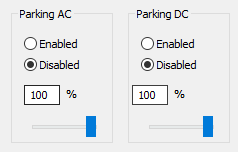
and hit ‘Apply’, you may also want to adjust Frequency Scaling so it’s always giving 100%, change this
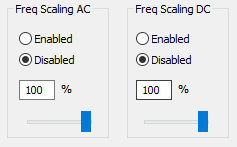
and hit ‘Apply’. Bear in mind this will use more power as your CPU won’t dynamically alter clock speed.
- Please note to force constant max CPU performance (either by setting the Frequency Scaling to 100% in ParkControl, or setting the ‘Minimum CPU’ state to 100% in your power settings:
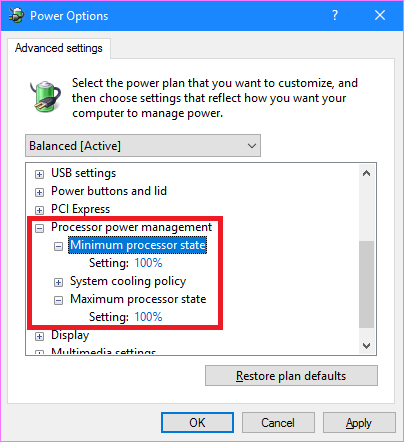
) you MUST have C1EDISABLED and EIST ENABLED within your BIOS, you should be looking for something like this:
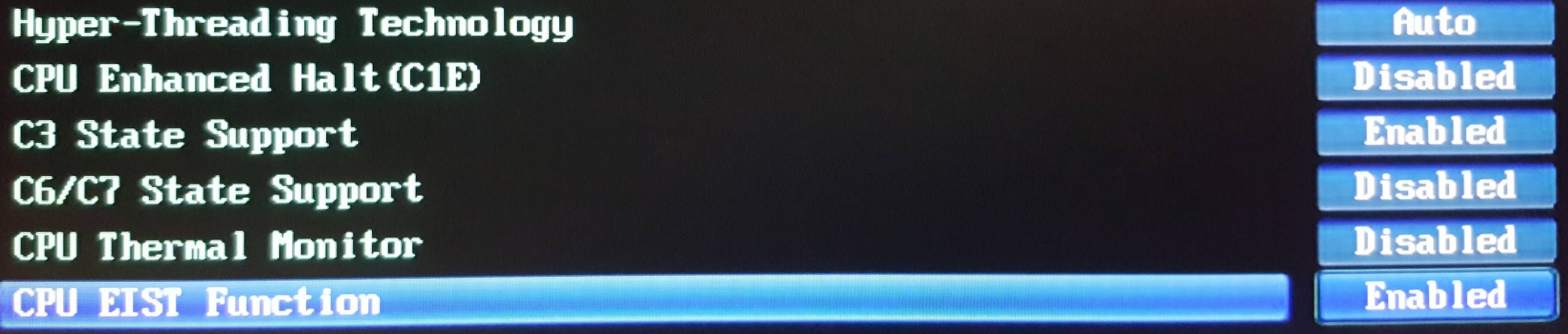
(please check the edits at the bottom for more info on power states)
- If you have an i7 CPU, make sure Hyperthreading is enabled in your BIOS.
- Unplug or disable your second/third monitor. People have reported a 20+ FPS drop just from having a second monitor plugged in.
Other (unverified) Solutions: - Disable Superfetch in Windows http://www.technipages.com/windows-enable-disable-superfetch Do this last, re-enable it if it has no effect.
- Windows Audio Device Graph Isolation has caused stutter in Battlefield 4 and other games, you could try turning it off: What Is "Windows Audio Device Graph Isolation" and Why Is It Running on My PC?
- If you’re using an older overclocked i5/i7 chip (2600k era etc.), you may see some benefits in disabling C3 and C6 power states in your BIOS.
UPDATES
EDIT 2 - Included a better option for managing parked cores/CPU frequency. Please note you shouldn’t generally need to unpark cores in Windows 10 but there does seem to be some teething issues for some so try the fix anyway.
EDIT 3 - Updated to include older drivers
EDIT 4 - Added Windows Audio Device Graph Isolation suggestion
EDIT 5 - Added Borderless/Windowed Mode suggestion
EDIT 6 - Updated iformation on CPU power states, for the record C1E means the CPU handles power saving alone - nothing you set in Windows will override this. Enabling EIST means Windows will handle the power.
EDIT 7 - New Drivers from AMD and nVidia.
EDIT 8 - Added potential 100% CPU Fix
EDIT 9 - Possible workaround for light bug on Aimens map
EDIT 10 - Disable Origin Overlay

