Battlefield 1 is a beatifull game and the graphics are still simply amazing. The combination of semi-destructible environments, terrain deformation, and lighting effects—along with plenty of skill on the part of the level designers and artists—results in a visually impressive game. For me, Battlefield 1 is the best battlefield so far. I might be the only one who feels that way. But I mean it.
BF1 includes a decent number of settings to tweak, in addition to the presets. I will provide you with every single graphics comparison and benchmark you can imagin. I will benchmark everything I can think of. And in the end, If I forget something, just mention it in this topic and I will bench it for you.
There have been simular reviews like this one, but those are outdated. Since then there have been many changes to the game. Some might even say that the first release was a lot smoother then the latest one. Let’s have a look how the settings effect the game in 2018.
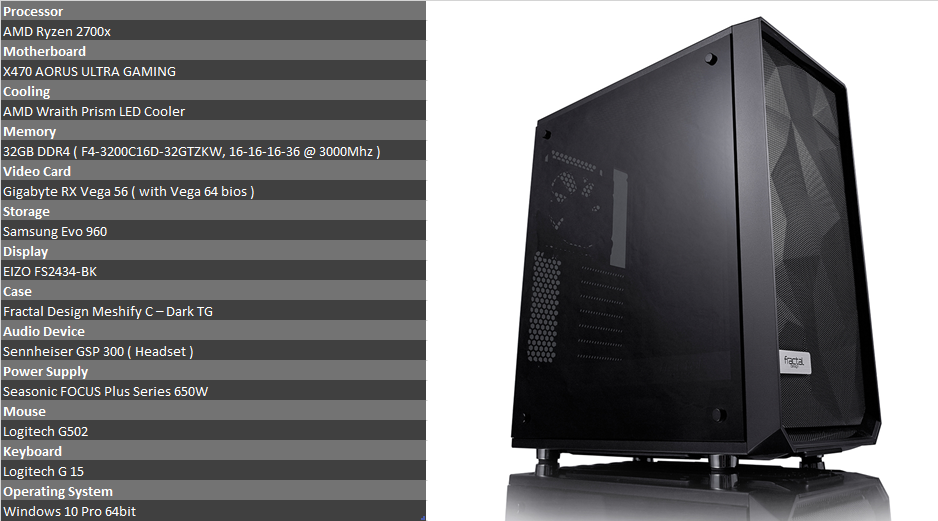
Test system:
Important to know:
- I only bench online. I’m guessing all of you are not playing the singleplayer campaign every day.
- I’m only benchmarking DIrectX11. Simply because it’s the best setting for 99% of all players. DirectX12 has no visual benifits at all in this game.
- I do most benchmarks on the map “St Quintin Scar” simply becaus it’s the most demanding map in the game.
- I run the performance benchmarks 3 times for 1minute. And always on Conquest. The framerate highly depends on how long the match has been running. More time = more destroyed buildings = lower fps
- I always try to stay in the same area/house while benchmarking. This so that there is a realistic comparison between low, medium, high and ultra.
- When certain big things happened in a session, like an airship explosion or the destruction of my house, I didn’t use that benchmark session for the comparisons, in those cases, I restarted.
- I only show the minium framerate. I don’t beleave in avarages and maximum framerates. It’s an online shooter. And it’s the minimum framerate that has to stay above 60 in order to keep smooth gameplay.
- I benchmark at 3 settings. 1080P, 1080P with 150% resolution Scale and 1080P with 200% resolution scale.
- The performance sharts you see are the avarages of the minium framerate on those 3 resolutions. ( 12 benchmarks per setting )
Texture Quality - The graphics
There is little to no difference when it comes to texture quality between, low, medium, high and ultra.
I asked my wife just to make sure there is nothing wrong with my eyes.
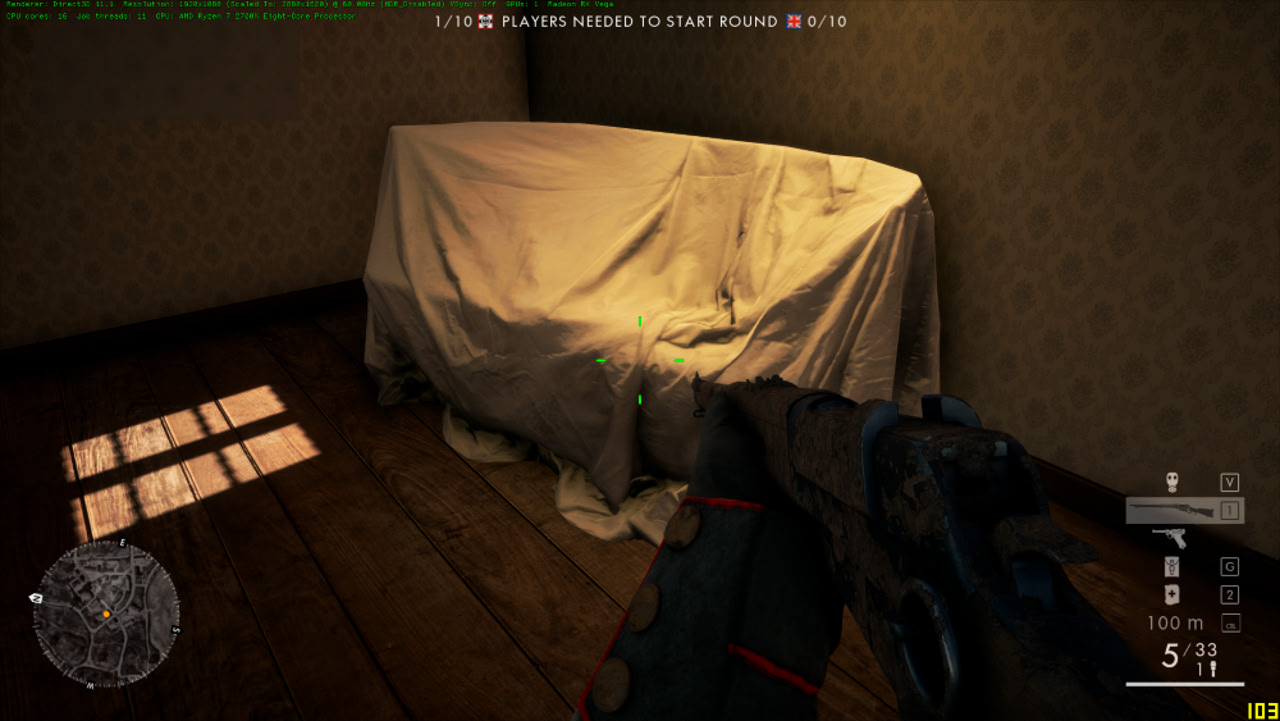
On the image below you will see “ultra” on the left side of the image and “low” on the right side.
You might actually think that the right side is ultra, simply because the object has more details on the right side.
This setting on low does make plants look brighter then on ultra.
Texture Quality - The performance
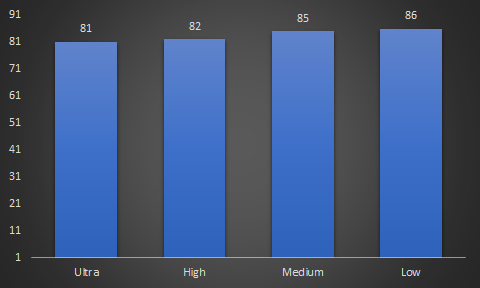
On avarage, you can win around 6% performance by lowering this setting to “low”.
I recommend that you put in on low, especially if you’re playing on a resolution scale above 100%.
Only put it on Ultra when you have to much FPS to spare. But if you do, I would always recommend increasing the resolution scale, because it will add way more details to the textures then the texture setting ever will.
Texture Filtering- The graphics
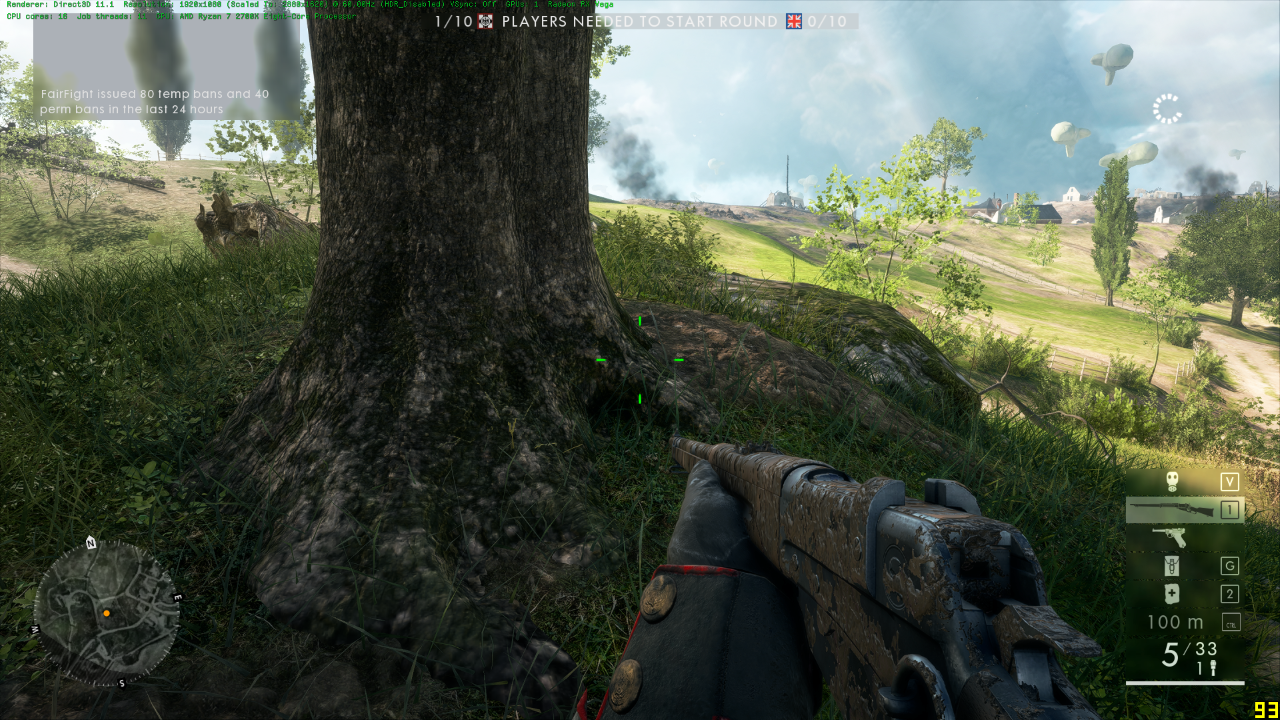
Same result here. Can you spot the difference between low and Ultra? I sure cant.
And YES, these are two images ( left side, right side ).
Texture Filtering - The performance

Since the minium fps on high was higher then on Ultra, you can ask yourself if I got lucky with that 87fps on low and medium.
But since there is no difference in visual quality. I would leave this one on low aswell.
Lighting Quality - The quality
Now this is a setting that does have a huge impact on visual quality. Low makes light effects less intens and lowers the shadow resolution and size.
The higher this setting, the higher the shadow resolution and size.
Ultra looks nicer but does give you a disadvantage in the multiplayer. Because shadows are more detailled, it makes it harder to spot enemies who walk or camp in those shadows.
If you take a look at the bush down the street, you can clearly see it much better on low then on the other settings.
Just think about it. An enemy will always stand out more if he’s standing before a brighter or more blurry background then if he would be standing before a darker more detailled background.
And beleave me when I say this, in the heat of the action, you wont notice that the shadows are blurry. Can you guess my setting recommendation for this one? 
Lighting Quality - The performance
To be honest. There isn’t that much difference between the minimum fps on the 4 settings. But still, there is more then 7% difference between low and Ultra.
The avarages and the highest framerates show way bigger differences. But like I sad, I personally care about the minimum, because that will determin how smooth the game feels.
So take in to account that enemies are easyer to spot, and you gain an avarage of 7% ( minimum fps ). It’s worth it to put this setting on “low”.
Effects - The quality
This one I can’t show with screenshots. But it’s easy to explain since I’ve searched for the differences between the settings.
If you lower the effect settings, it will speed up all effect animations in the game. ( explosions, mist, smoke, sand, etc… )
For example: When you trow a grenade in the sand. The explosion will cause dust to blow up and it will keep “smoking” for a second or two. On low, the dust will settle much faster and the smoke will clear much faster. Ultra does give the game a more realistic fealing because the animations look more realistic when they are displayed at a slower paste. The downside is that the effects on ultra are a disadvantage in the multiplayer. A player with this setting on ultra will not see as clearly as a player with this setting on low. Especially when there is a lot of action ( explosions ). Simply because all the effects disappear sooner on low.
Another difference is that mist, gas and smoke lookt a little better on Ultra.
Effects - The performance
Well, on my PC, not a single FPS difference ( to be clear, the minimum framerate ).
This might not be the case on a slower PC. But if nobody sees an impact on the framerate, then it would be strange that this settings exists.
Post Processing - The quality
Post processing does two things in this game. The first and most visual difference is the overall sharpness of the game. I only showed a portion of a screenshot to it’s easyer to spot the difference.
A second change is the way objects get reflected on water and windows. By setting post processing on low, you are really downgrading the realism in this game.
The way the rain hits the puddles… The reflections are beatifull with post processing on Ultra.
Post Processing - The performance
That’s 15% difference in minimum framerate between Low and Ultra. While lowering this setting will provide a huge performance difference, your game will look more blurry and less realisic.
I put this on Ultra, because I prefer sharpness over all other graphics settings in games.
Mesh Quality - The Quality
Mesh quality clearly determins wich objects/detailed get rendered from a certain distance.
On low you can see that small objects like doors and windows are not rendered yet. While on Ultra, the houses are no longer under construction
So know you know how some people can shoot you behind the door without hacking 
But to be serious, this setting should always be on Ultra unless you like that map details pop up while you walk forward and dissappear when you walk backwards.
Mesh Quality - The performance
About 7% performance difference between Ultra and Low. You already know wich setting I recommend for this one.
Terrain Quality - The Quality
This setting adds more volume thanks to tessalation. Without this on Ultra, you are basicly going back in time to the good old days where everyting in games was flat.
So if you want some volume on the ground, the walls, etc… Put this on Ultra.
Terrain Quality - The performance
No difference in performance on my system, unless you put this setting on Low. Then you get 2% extra performance. Not worth the visual sacrifice if you ask me.
Undergrowth - The quality
Spot the difference between Ultra and low. I sure can’t…
Undergrowth - The performance
There is no point in showing the graph since there was only 1fps difference, and only if I don’t use a comma in the framerate…
I honestly don’t understand why this setting exists. If someone knows, please respond with a screenshot.
Antialiasing - The quality
As the name implies, anti-aliasing strives to reduce aliasing as much as possible by a variety of techniques. These differ both in the way that they deal with the “jaggies” and in how much they affect the in-game performance. Unless you love constant flickering, just put this on TAA.
Antialiasing - The performance
About 9% performance difference between off and TAA. Since the game looks horrible without TAA, i recommend TAA.
Ambient Occlusion - The Quality
Ambient Occlusion is basicly a shadow setting for objects. I prefer it on Off because it’s easyer to sport enemies in bushes that way.
The visibility increased a lot on dark maps!
Ambient Occlusion - The performance
A small performance difference on my current system.
Radeon Settings - Graphics Profile - The Graphics
Like in most modern games, this setting has no effect. In the past, when games had textures without details, you would notice a difference.
But now, with so much detail, it’s impossible to notice.
Expect the same results on an Nvidia Card by changing the Texture filtering quality setting.
Radeon Settings - Graphics Profile - The Performance
So if you want 5% extra performance for free, change the profile setting!
Expect the same results on an Nvidia Card by changing the Texture filtering quality setting.
Overclocking the GPU - The performance
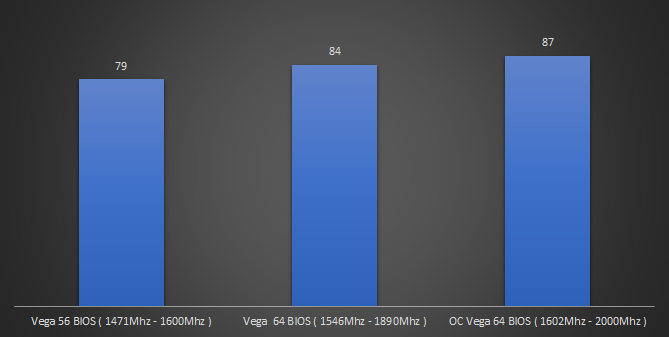
If you’ve never tried this before. You should try. Overclocking a GPU is easy and I’ve never damaged my card in doing so.
You can clearly see that I gained 10% performance by overclocking my card to the maximum.
I do have to admit, the power usage and noise had to be increased a lot for “only” 10% performance.
To be clear, that’s 10% increase on the MINIMUM framerate. The gain is higher for avarages and maximum framerates.
The power usage increased by more then 30% for 10% performance gain. But me personally, I don’t care about that.
The card stays below 70°C as long as I let the fans run at maximum speed while gaming. And with my headset, no way to hear my computer.
Streaming with Radeon Relive - The performance
3.7% performance impact while streaming on Full HD. If you want to have a look at the streaming quality:
The graph above shows the avarage of the minimum framerate at 1080P, 1080P with 150% resolution Scale and 1080P with 200% resolution scale.
So basicly, if your bandwith can handle it, and you own an AMD card. You can stream without wurries.
But if you want to do professional streaming with a cool interface, expect a much bigger performance impact on software like OBS.
thread.processorcount x - The performance
On BF1 you can use certain tweaks. One of wich is the configuration of the amount of threads the game can use. You can add the commands listed below in a User.cfg file in the main BF1 folder.
The engine does have certain limits. The game wont run if you’re using less then 3 threads and it will also crash when you try to run it with more then 11 threads.
By default, the game is configured so that it uses 4 threads.
I’ve run this test on only one resolution. That is 1080P, Ultra settings with 130% resolution scale.
For once I will show you the max and avg fps aswell. Since there is no difference in the minimum framerate. And this might be hard to beleave.
The reason why the game performs better with 3 threads instead of 11 on my PC can be explained by the fact that my CPU was able to boost to higher clockspeeds with only two CPU cores active.
But, like I sad before. It’s the minimum FPS that counts. And I got the same performance drop to 74fps.
The performance impact will not be the same for every CPU. On my PC, with 4 active threads, I still got 12 more for all other software that is running ( anti-virus, discord, steam, etc… ).
But if you only have 4 threads on your CPU, they have to “share” the game with all other background-tasks, and this could cause micro-stutters.
My advice:
Always make sure you got one CPU-thread free. Meaning, if you have an Intel I6600K or a simular CPU ( 4 cores, 4 threads ), try to run the game with the minimum of 3 threads.
The more cores you have, the more threads I would dedicate to the game but always with minimum 1 spear thread.
Tip: In order to configure the game for minimum theads, use:
thread.processorcount 2
thread.maxprocessorcount 2
This will result in 3 active threads.
Tip: In order to configure the game for maximum threads, use:
thread.processorcount 12
thread.maxprocessorcount 12
This will result in 11 active threads. If you go higher, the game will crash before you see the main menu.
Tip: In order to see how many active threads there are, add the command “render.DrawScreeninfo 1” to your User.cfg file.
So what is the best way to find the perfect settings for your system. Change these settings, in this order, and after every change, play the game for one session.
Keep upgrading the settings untill you find the sweet spot. Meaning the lowest framerate you want to game to run on.
Step one:
Create a User.cfg file with the following settings:
thread.processorcount x ( follow guide above )
thread.maxprocessorcount x ( foloow guide above )
thread.minfreeprocessorcount 0
render.DrawScreeninfo 1
RenderDevice.RenderAheadLimit 0
Step two, change the settings in this order:
- DirectX 12 off
- Anti-aliasing
- Mesh Quality
- Terrain Quality
- Post processing
- Effects ( but keep in mind that there is a gameplay disadvantage )
- Keep everying else on low. Turning the other settings higher will only decrease framerates, increase VRAM usage and will even give you a gameplay disadvantage.
- Now increase your resolution scale as high as you can go without reaching your minimum desired framerate
I posted this draft topic while it wasn’t finished yet by accident. More benchmarks will get added in the upcoming days.
Impact of GPU driver settings, impact of discord overlay, impact of windows settings, etc…


 Ryzen 1600 + RX 580