There are several things to do that may help in ones specific situation. Below is a list of several items in which may be beneficial to you DEPENDING if your system is set-up properly. I strongly suggest each of you try each step! ALWAYS test after completing each one to see if your specific issue has been resolved! These are all VARIFIED known fixes posted here within the forums. Some of the suggestions are simply to improve your gaming experience, other WILL increase your systems overall performance! R E A D each of the tips & apply them INDIVIDUALLY then test to be sure your system is stable & performs well during normal use/gaming. Return & re-post your success or failures so we can resolve the issues to benefit all users!
NOTE: BEFORE you ask for help It is to your advantage to complete the following which will GREATLY improve your getting your specific problem resolved ACCURATELY!
FOLLOW THIS LINK: Also it is # 10 in the list - HOW TO - Avatar / Presentation / Signature
( 1 ) Check for Errors within your Operating System - sfc /scannow LINK - Use the System File Checker tool to repair missing or corrupted system files | Microsoft Support [support.microsoft.com]
( 2 ) Reliability Monitor - This is a Windows System tool that most overlook but is useful if your having issues! Windows help and learning | Microsoft Support [windows.microsoft.com]
( 3 ) Use Google Chrome as a browser to play the game. LINK - Google Chrome - The Fast & Secure Web Browser Built to be Yours [google.com]
( 4 ) ALWAYS check for malware using Malwarebytes ( Free Version ) is simple - LINK - Malwarebytes Anti-Malware - Protect, Detect & Remove Malware From Your PC | Malwarebytes [malwarebytes.org]
( 5 ) If you have connection issues - Port Forewarding
You can visit How To Set Up Port Forwarding - Port Forward [portforward.com]
to get a tutorial for which ever router you have.
NOTE - To check your ping complete the following.
Command Prompt
type ping -n 1000 thenwww.Battlelog.com ( or the server address ) press ENTER. This will allow you to check for Packet Loss & other related issues.
Additional Information ( Firewall ) on - off - Windows help and learning | Microsoft Support [windows.microsoft.com]
Ping Test LINK: http://ping-test.net/ [ping-test.net]
( 6 ) Turn Off Origin In Game & Featured Today - LINK - HOW TO - Disable Origin In Game & Featured Today
( 7 ) Direct X Problems -
Go My Computer / C: / Program Files (x86) / Origin Games / Battlefield 4 / _Installer Folder / directx / redist / find then select DXSETUP
Open it & a box will appear! Allow it to start then another box will open ( Welcome To setup for DirectX ), Accept the agreement, click the next button, then the DirectX Runtime Install box appears, click the next button, Once started, it will search for the existing components & install them, click FINISH to complete the installation. Re-Start your computer & test while playing the game to see if this resolves the issue!
( 8 ) Memtest ( memory Testing Utility ) find memory leaks - LINK - http://www.memtest.org/ [memtest.org]
( 9 ) System Requirements - Battlefield 4: Requirements, Release Dates & Beta
( 10 ) HELP US TO HELP YOU - HOW TO - Avatar / Presentation / Forum Signature / Location - LINK - HOW TO - Avatar / Presentation / Signature
( 11 ) IF APPLICABLE - CPU Lag Fix - LINK - Battlefield 4 CPU Lag Fix - Gameranx [gameranx.com]
( 12 ) How To make A user.cfg file: LINK - SINDOPLAY: Link Daftar Login Situs Slot Online Hoki Malam Ini [bftips.com]
-
- FILE NAMES * *
To show your FPS in game constantly - perfoverlay.drawfps 1
To show a graph of you CPU & Graphics - perfoverlay.drawgraph 1
There are additional user.cfg files you may consider for added performance. Add all lines to a single file to complete the task.
Other Command Lines you may RESEARCH to tune ( DIFFER depending on system hardware ):
perfoverlay.drawfps 1
perfoverlay.drawgraph 1
VisualTerrain.DxDisplacementMappingEnable 1
VisualTerrain.DxTessellatedTriWidth 9
VisualTerrain.LodScale 1.1
VisualTerrain.MeshScatteringBuildChannelCount 8
VisualTerrain.MeshScatteringBuildChannelsLaunchedPerFrameCountMax 4
VisualTerrain.MeshScatteringDistanceScaleFactor 2
VisualTerrain.MeshScatteringDensityScaleFactor 1
VisualTerrain.MeshScatteringInstancesPerCellMax 4096
VisualTerrain.MeshScatteringQualityLevel Ultra
RenderDevice.Dx11Enable 1
RenderDevice.Dx11Dot1Enable 1
RenderDevice.Dx11Dot1RuntimeEnable 1
WorldRender.TransparencyShadowmapsEnable 0
WorldRender.MotionBlurEnable 0
WorldRender.MotionBlurForceOn 0
WorldRender.MotionBlurFixedShutterTime 0
WorldRender.MotionBlurMax 0
WorldRender.MotionBlurQuality 0
WorldRender.MotionBlurMaxSampleCount 0
WorldRender.PlanarReflectionEnable
perfoverlay.drawfps true
renderdevice.renderaheadlimit 3
thread.processorcount 4
thread.maxprocessorcount 4
thread.minfreeprocessorcount 0
gametime.maxvariablefps 59.93
( 13 ) Repair Battlefield4 ( the Game ) -
Open your Origin, Right Click on Battlefield4, select Repair Game, allow the repair to complete then re-start your Origin.
( 14 ) Directx -
Go My Computer / C: / Program Files (x86) / Origin Games / Battlefield 4 Beta / _Installer Folder / directx / redist / DXSETUP
Open it & a box will appear! Allow it to start then another box will open ( Welcome To setup for DirectX ), Accept the agreement, click the next button, then the DirectX Runtime Install box appears, click the next button, Once started, it will search for the existing components & install them, click FINISH to complete the installation. Re-Start your computer & test while playing the game to see if this resolves the issue!
( 15 ) Turn Off Video Background in Battlelog -
Go to Settings / General / Local Settings move the white box to the left in the Enable vidoe background for this device/browser - Select Save to complete. This will reduce your CPU useage!
( 16 ) NVIDIA SVC FREEZE while in game
The NvStream is used by the NVIDIA Shiela NOT your PC, to stop freezes complete the following steps:
Open a ADMINISTRATIVE command Prompt & type in the following EXACTLY as shown here!
sc stop “NvStreamSvc” It will open the Svc Diagnostic
Type in the following sc config “NvStreamSvc” start= disabled then press ENTER. Close the Command Prompt, NvcStream is now disabled!
- FILE NAMES * *
- NOTE: Shadowplay the nvstream service can not be disabled if your using Shadowplay!
( 17 ) Over-Clock your monitor LINK: http://linustechtips.com/main/topic/31526-overclocking-your-monitor-refresh-rate-amd-gpus/ [linustechtips.com]
( 18 ) Game Fails To Launch
Run Origin as Administrator - Right-click the Origin icon on your desktop Select Run As Administrator. Restart Origin and try launching your game.
Temporarily disable anti-virus software that may be prohibiting Origin from being able to function properly. Restart Origin and try launching your game with the anti-virus off to see if that solves the issue. If so, you may need to adjust the settings of your anti-virus software & exclude Origin.
If this does not work.
Try the following
Go to the folder Origin.
Find the file there named OriginER and run ( left click )
Select the items that are appropriate for your problem, you may also try to repair the game it’s self, always finish with a simple reboot of your PC.
( 19 ) ERROR UDP Port 3659
https://www.youtube.com/watch?v=riN1QHzG4bw
[youtube.com]
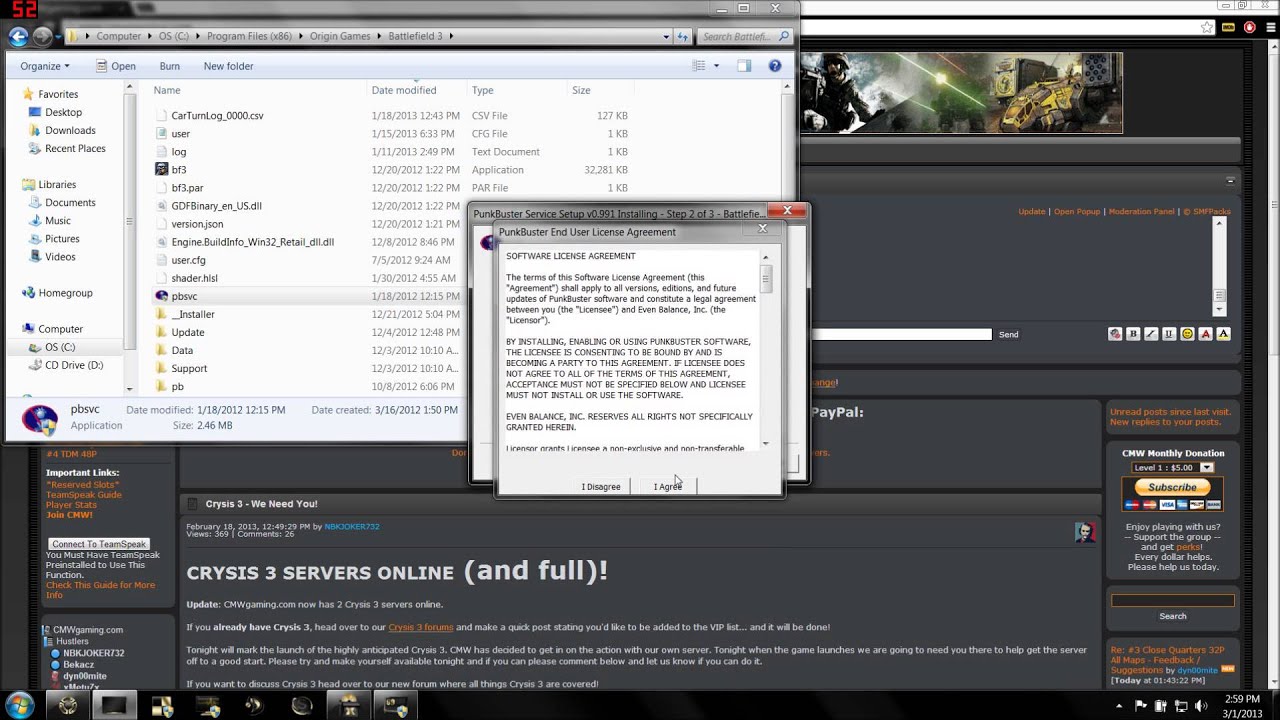
( 20 ) PunkBuster
The same in Battlefield 3 as well as Battlefield 4, follow the instructions in the link provided.
[youtube.com]
( 21 ) DDU - GPU Driver Removal Tool -https://forums.geforce.com/default/topic/550192/geforce-drivers/wagnard-tools-ddu-gmp-tdr-manupulator-updated-02-19-2015-/ [forums.geforce.com]
( 22 ) GPU Driver Removal Tool -https://forums.geforce.com/default/topic/550192/geforce-drivers/wagnard-tools-ddu-gmp-tdr-manupulator-updated-02-19-2015-/ [forums.geforce.com]
( 23 ) Configure & Limit Reservable Bandwidth Setting In Windows 8.1
http://www.thewindowsclub.com/configure-reservable-bandwidth-settings-windows [thewindowsclub.com]
( 24 ) Configure & Limit Reservable Bandwidth settings in Windows 7
http://windows7themes.net/en-us/disable-bandwidth-limit-in-windows-7-speed-up-your-internet/ [windows7themes.net]
( 25 ) CCleaner to clean up unnecesary files
Download CCleaner | Clean, optimize & tune up your PC, free! [piriform.com]
( 26 ) How to remove temp internet files
Windows help and learning | Microsoft Support [support.microsoft.com]
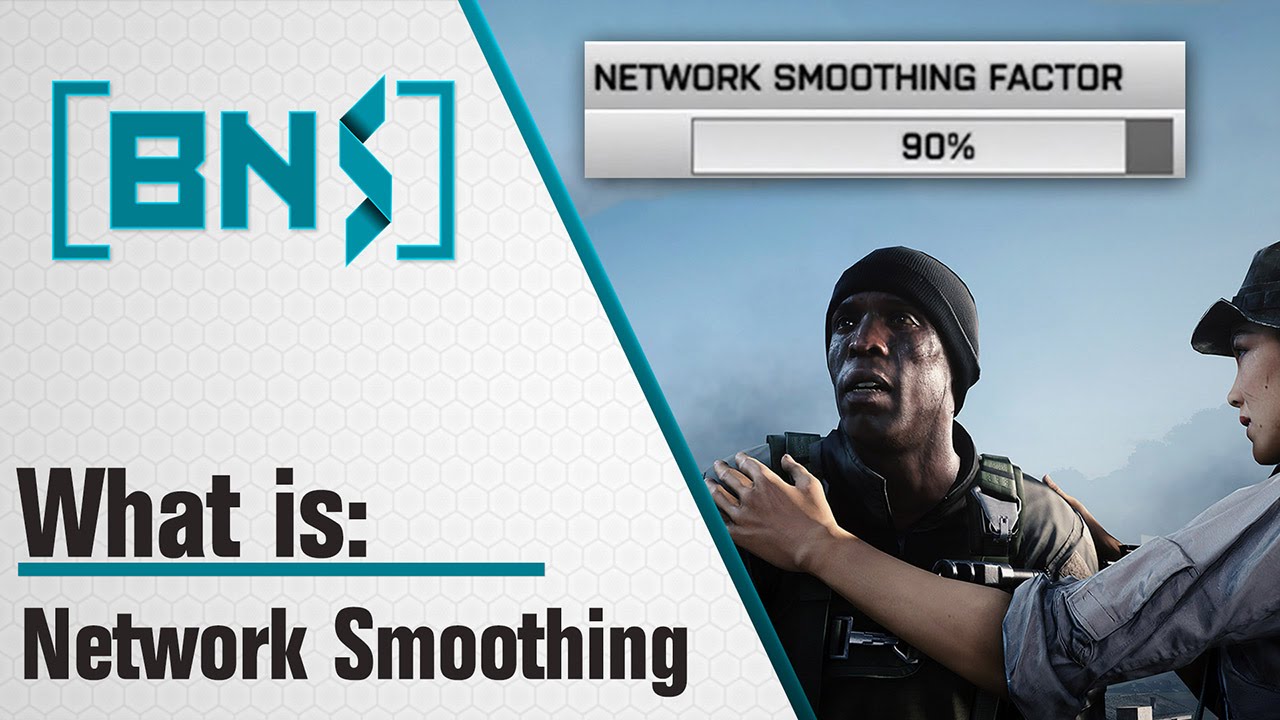
( 27 ) Network Smoothing Factor ( How To / Explained )
[youtube.com]
( 28 ) How to perform a CLEAN BOOT in Windows LINK: How to perform a clean boot in Windows | Microsoft Support [support.microsoft.com]
http://answers.ea.com [answers.ea.com] Miracles we do right away, the impossible may take some time!!
( 29 ) GPU Driver Removal Tool -https://forums.geforce.com/default/topic/550192/geforce-drivers/wagnard-tools-ddu-gmp-tdr-manupulator-updated-02-19-2015-/ [forums.geforce.com]
( 30 ) Packet Loss ( AldermachXI ) LINK: how avoid packet loss?
( 31 ) Phantom Codes - phase 1 - bumpinthenight phase 2 - epic dream worlds phase 3 - 24344241893
( 32 ) NUMEROUS TIPS - http://answers.ea.com/t5/Battlefield-4/READ-FIRSTS-Common-issues-Fixes-amp-Guides/m-p/3218167#U3218167 [answers.ea.com]
( 33 ) How to update Google Chrome - Update Google Chrome - Computer - Google Chrome Help [support.google.com]
( 34 ) Browse By Topic ( EA Games ) - EA Help: Official support [help.ea.com] Help File Link: Fixes/Improvements/Repairs *Updated 4/22/15**
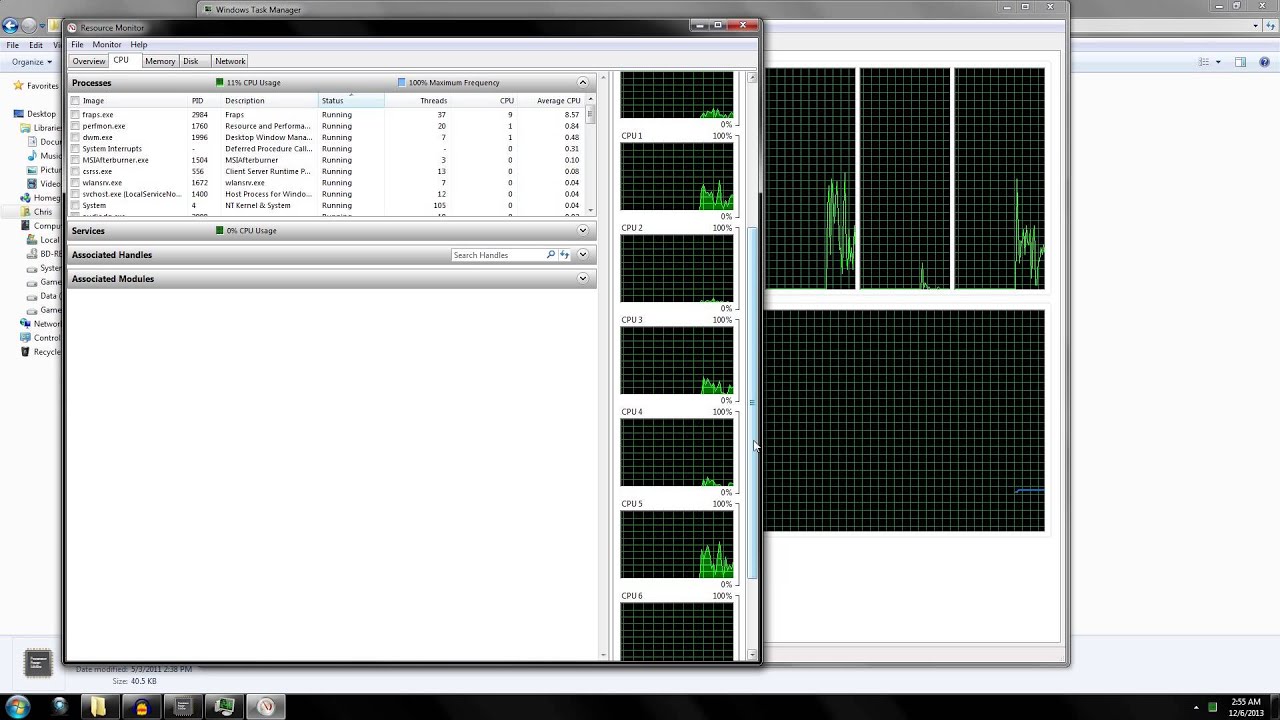
( 35 ) Un-park your CPU parked cores for performance gain -
You Tube Video -
[youtube.com]
Link To the software download - File sharing and storage made simple… [mediafire.com]
( 36 ) If you are using chrome - https://allinlearning.zendesk.com/hc/en-us/articles/204245434-Re-enabling-NPAPI-Plugins-in-Google-Chrome-After-Early-April-of-2015 [allinlearning.zendesk.com]
#1 ------- chrome://flags/#enable-npapi
#2 ------- Find “Enable NPAPI Mac, Windows” in the list, and click “Enable,”
#3 ------- Click the "Re
